
Manav Sampada UP eHRMS Login(2026 Guide)
Access Leave Apply, Service Book, Salary Slip & Employee Dashboard at ehrms.upsdc.gov.in
Manav Sampada UP eHRMS Login @ ehrms.upsdc.gov.in
The Manav Sampada UP portal is an online system for government employees in Uttar Pradesh to manage their work in one place. It helps users check leave balance, apply for leave, download salary slips, and update service records without visiting offices. More than 1.7 million staff members, including teachers, police, and health workers, use ehrms.upsdc.gov.in with one secure login. After the 2026 update, the portal works faster and offers better security, real-time status tracking, and easy profile management. This guide explains all the main features and shows step-by-step how to log in and use the portal easily.
Step-by-Step: How to Login Manav Sampada eHRMS Up Portal
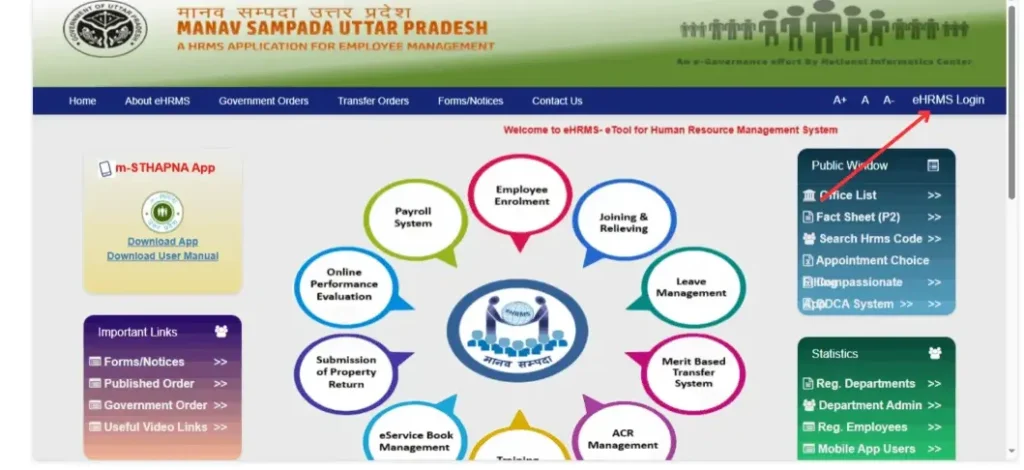
Step 1: Open your browser and search the official website ehrms up manav sampada https://ehrms.upsdc.gov.in
Step 2: You will be sent to the home page, and on the top right corner, there will be an eHRM login button. You have to click the button.
Step 3:Select Your State and Department
Choose Uttar Pradesh from the list, then pick your department (like Education, Health, Police, etc.).
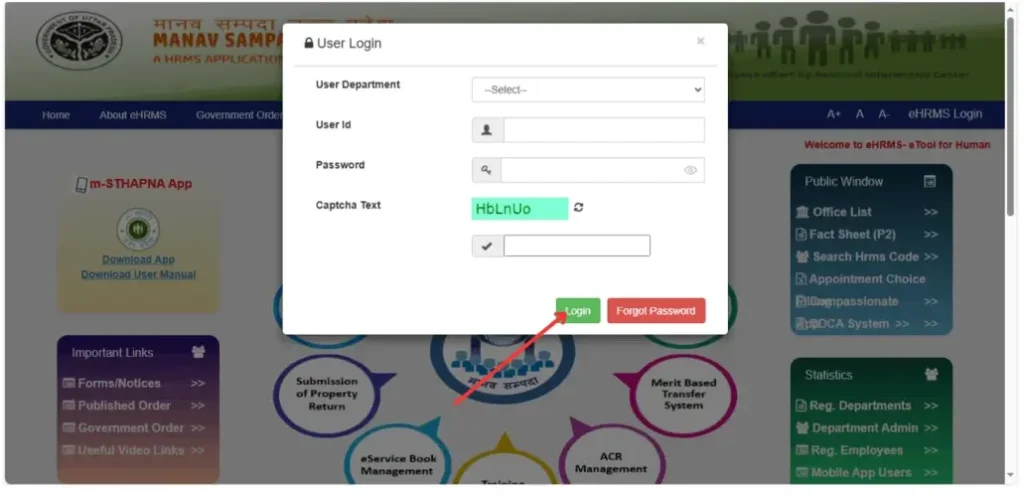
Step 4: Put in your username and password. There will be a captcha code on the screen
Step 5: Fill in the captcha text and click on the login button.
Step 6: Access Your Dashboard
Once logged in, the dashboard will open. From here, you can:
- Apply for leave
- Download your salary slip
- Check service records
- View attendance
All in one place.
eHRMS Leave Application Process (2026 Update)
Applying for leave on the Manav Sampada login up eHRMS portal is simple once you know the correct steps. The portal is built for all Uttar Pradesh government employees and helps you submit leave online without paperwork. Follow the clear steps below to apply for any type of leave.
How to Apply for Leave on Manav Sampada Portal UP
- Step 1 – Secure Login Protocol
Open your browser and visit the official website: https://ehrms.upsdc.gov.in
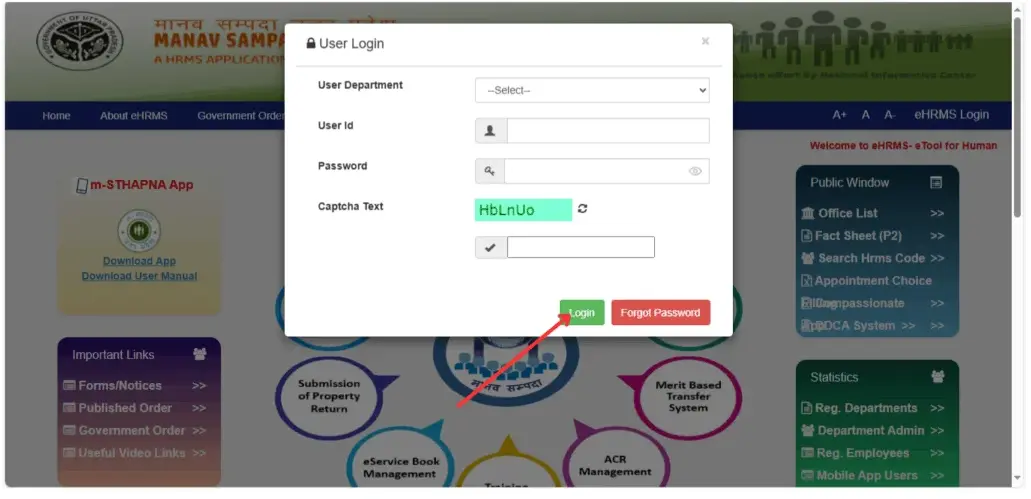
On the login page, fill in the required details:
- Department – select your department from the list
- User ID – your official employee ID
- Password – the password you created during registration
- Captcha – type the code exactly as shown
Click Login to access your dashboard.
- Step 2 –Open the Leave Application Menu
Once you are logged in:
- Go to the Dashboard
- Click on Employee Services
- Select Self-Service
- Choose Apply for Leave
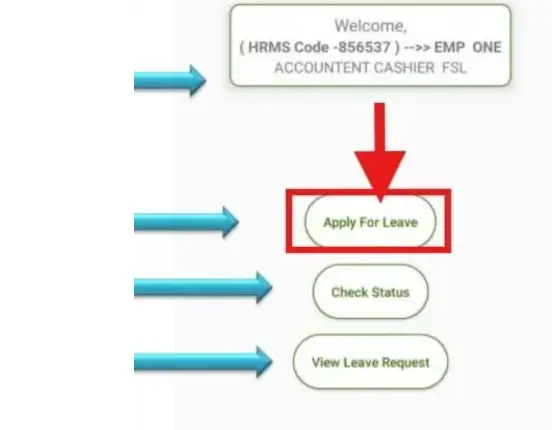
Here you will see options like:
- Leave type
- Leave dates
- Reason for leave
- Upload section for documents
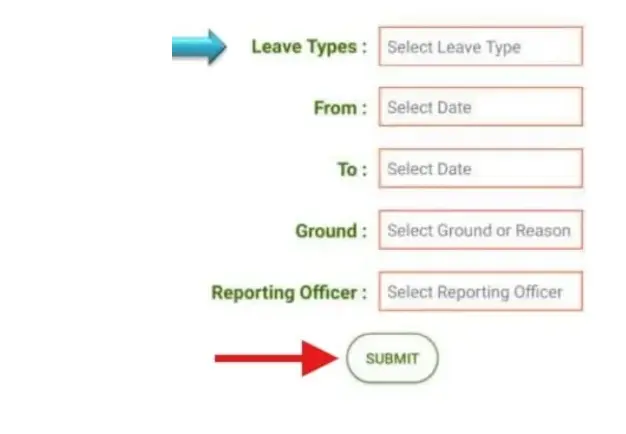
Upload documents: upload your necessary documents, e.g, medical certificate
- Step 3 –Fill Out the Leave Form
Choose the leave you need:
- Earned Leave (EL)
- Casual Leave (CL)
- Medical Leave
- Maternity/Paternity Leave
- Child Care Leave
- Study Leave
Now enter:
- Start date and end date
- Reason for taking leave
- Contact number
If necessary, please upload relevant documents, such as medical certificates or other supporting evidence.
Step 4 – Upload Required Documents (As per 2026 Rules)
- Mandatory Document Upload (NIC Standards)
This is an important update of the 2026 rules that you have to follow. If you don’t submit correct or valid documents, your application will be rejected.
Send documents in PDF or JPEG
Your file should be a maximum of 2 MB.
- When you enter your information, read it carefully; otherwise, you can face issues
- Then click on the submit button.
- Submission & Real-Time Status Tracking
When you have reviewed all your details and seen the documents, click on the submit button, and you will get the application ID (format: MS/UP/YYYY/XXXXXX). Write in a safe place for the future.
- How to Track Leave Application Status
To check if your leave was approved or rejected:
- Login again to the portal
- Go to Leave Management
- Select Application History
- Choose the current year (2025–2026)
- Search using your Application ID
Status will appear as:
- 🟢 Approved – leave is confirmed
- 🟡 Pending – officer has not reviewed yet
- 🔴 Rejected – check remarks for correction
⚠️ Emergency Leave Process
- Submit the leave request as soon as possible (within a day of the emergency).
- Choose the option related to an urgent medical/unexpected situation.
- The system may give you temporary approval for a short period (around 2–3 days).
- Add a clear note saying that you will provide documents later as required by Rule 19.3.
- Keep the reference number safe and upload the necessary proof before the final deadline.
How to Get Your Manav Sampada Login ID and Password (2026 Guide)
If you are a new employee or logging in for the first time, you will need two things to access the Manav Sampada (eHRMS) portal:
Your Login ID and your default password.
Here’s the correct and safe way to find both.
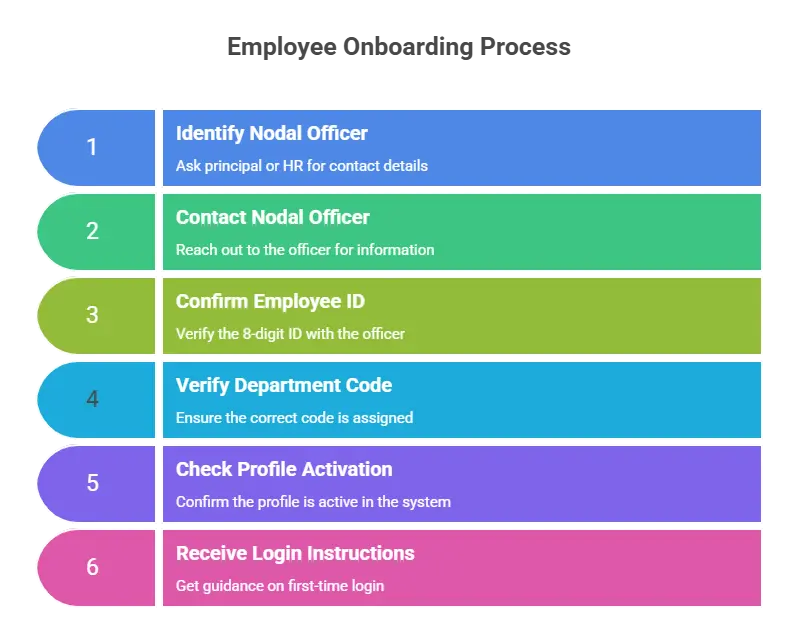
1. Ask Your Nodal Officer
Every department in Uttar Pradesh has a designated Manav Sampada Nodal Officer who handles employee onboarding.
Your Nodal Officer can confirm:
- Your official 8-digit Employee ID
- Correct department code (e.g., EDUBASIC for Basic Education)
- Whether your profile is activated in the system
- First-time login instructions
How to contact them:
Contact your school principal, department office, or district’s HR branch for the Nodal Officer’s details.
2. Check Official Documents
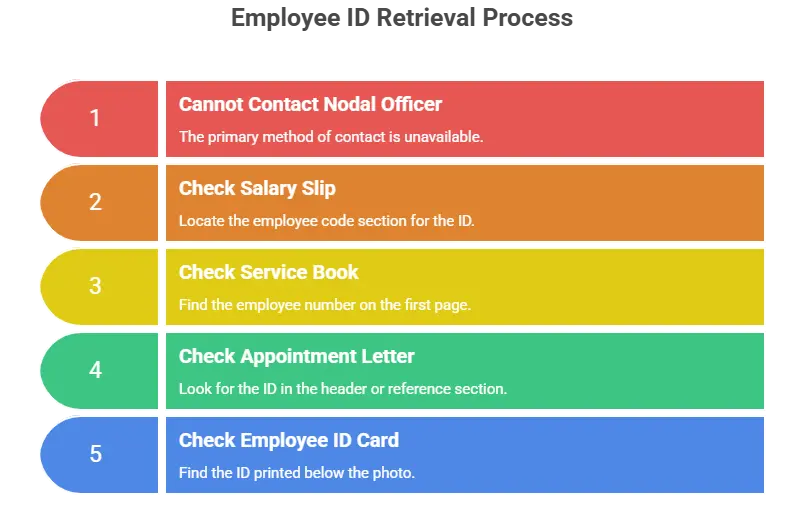
If you cannot contact the Nodal Officer, check these documents:
Salary Slip (employee code section)
Service Book (first page lists your employee number)
Appointment Letter (top header or reference section)
Government Employee ID Card (printed below your photo)
How to Get Your Employee ID
Your login can be either:
- Your Employee ID (most common)
- The mobile number used during registration (in some departments)
How to Generate Your Default Password
For the first-time login, Manav Sampada uses a simple password formula:
Formula:
First 3 letters of your FIRST name (UPPERCASE) + Birth year (YYYY)
Important Rules:
- Use only your first name (ignore middle or last name)
- Always type the first three letters in CAPITALS
- If your name has fewer than 3 letters, use all available letters
Examples:
| Name | Birth Year | Default Password | Logic |
|---|---|---|---|
| Amit Sharma | 1988 | AMI1988 | AMI + 1988 |
| Neha Verma | 1993 | NEH1993 | NEH + 1993 |
| Adeel Hussain | 1985 | ADE1985 | ADE + 1985 |
| Al | 1990 | AL1990 | Name has only 2 letters |
| Har Pal Yadav | 1988 | HAR1988 | First 3 letters of first word |
Security Tip
- You must change this default password immediately after your first login.
- This protects your profile from unauthorised access.
- Only use the official portal
- Keep your mobile number linked for OTP verification
- Contact your Nodal Officer if the login fails
Key Dashboard Services & Important Modules (2026)
Mandatory Access Requirements
Secure guidelines for access
- Activate SSO login at https://ehrms.upsdc.gov.in
- Valid employee status. active (not suspended)
The registered mobile should be active to receive OTP.
How to Download Your Salary Slip (2025 Protocol)
To download a salary slip, you have to follow these easy steps:
Step 1
- Log in to your eHRMS Manav Sampada portal salary slip portal. https://ehrms.upsdc.gov.in
- Put in your standard ID, then give the password, and at the end fill in the captcha.
- Registered mobile for OTP verification.
Step 2: navigate
Dashboard-employee service -payroll management-salary slip
Step 3: Generate a slip
| Field | Required Input |
| Financial Year | 2026(current year) |
| Month | Dec 2025 |
| Formate | Encrypted PDF (ISO 27001 Certified) |
Step 4: Download & Verify
- Generate Slip: Click Generate → System creates a watermark‑secured salary slip.
- Security Features:
- NIC digital watermark
- QR code for instant authenticity check
- Download Options:
- Direct PDF save
- Auto‑email to your registered address (New in 2025)
- File Naming Format:
UP_[DeptCode]_[EmployeeID]_Salary_YYYY-MM.pdf
Example: UP_MED_54321_Salary_2025-07.pdf
How to Access Your e-Service Book
Your complete government service history is now digitally stored, encrypted, and accessible online — no more paper files or manual record checks.
Quick Navigation Path
Dashboard → Service Records → Digital Service Book
2026 Security Upgrades
- Blockchain Record Lock – your career history is safe by SHA-256 256hashing
- AES‑256 Encryption All your documents are locked through encryption.
- NIC Digital Signatures – Every entry verified with official certificates. Every update is verified through NIC with digital certificates.
- Historical Archives – Access scanned Annual Confidential Reports (ACRs) from 2005 onwards. Your annual confidential reports ACRs are saved from 2005. You can easily get access.
Click Search to view your complete service record instantly.
Log in to the EHRMS UP portal with your credentials.
Go to the Employee Service Book.
Enter your EHRMS Code and other required details.
Complete the CAPTCHA verification.
GPF Account & Tax Documents
GPF Services
Path: Dashboard → GPF Services
In this section, you can:
- Check your current GPF balance
- Download annual statements
- Apply online for advances or withdrawals
- Track the status of your requests
Form 16 & Tax Details
Path: Dashboard → Tax Documents
Here, you can access:
- Complete tax deduction summaries
- Downloadable Form 16
- Options to update investment declarations
Online Transfer & Posting Module (2026)
The Manav Sampada transfer system is fully digital and integrated for faster processing.
Check Eligibility & Vacancies
Path: Dashboard → Transfers → Eligibility
View available positions and confirm whether you are eligible to apply.
Apply Online
Path: Dashboard → Transfers → Apply
Submit your preferred locations, reason for transfer, and required documents.
Track Application Status
Path: Dashboard → Transfers → Status
Monitor your request in real time:
Submitted → Under Review → Approved → Order Generated
Download Transfer Order
After approval, download your official QR-coded transfer order directly from the portal.
Annual Property Return (IPR Filing)
Every government employee must submit property details once a year.
Submit Property Return
Path: Dashboard → Compliance → Property Returns
You must declare:
- House
- Land
- Flat
- Plot
Upload Supporting Documents
- Registry papers
- Municipal tax receipts
- Sale deeds
⚠ Important Note:
Late submission may lead to remarks in your service record and delays in promotion.
How to Generate a Fact Sheet (P2 Report)
The P2 Report is an important administrative record often used for official verification. Follow these steps to access it:
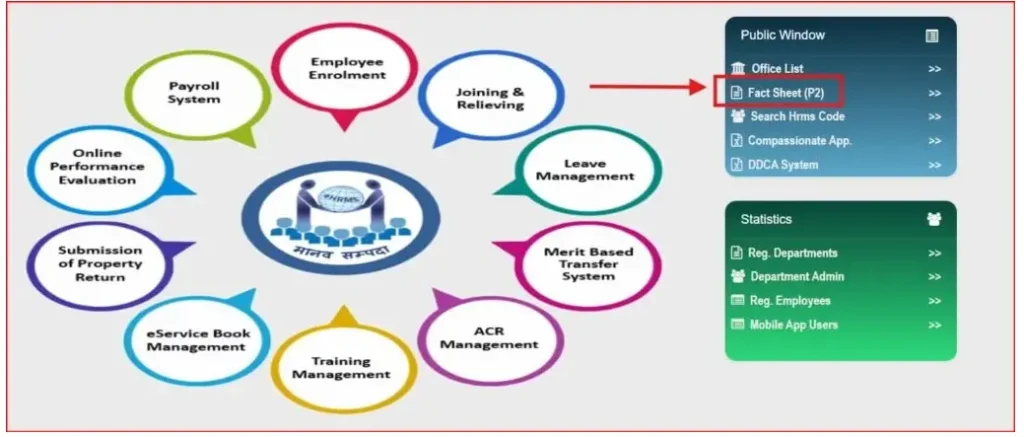
- Open the eHRMS Public Window. Visit ehrms.upsdc.gov.in in your browser.
- Navigate to the Fact Sheet Section. Go to Administrative Services → Fact Sheet (P2).
Navigate to the Fact Sheet Section. Go to Administrative Services → Fact Sheet (P2).
Open the eHRMS Public Window. Visit ehrms.upsdc.gov.in in your browser.
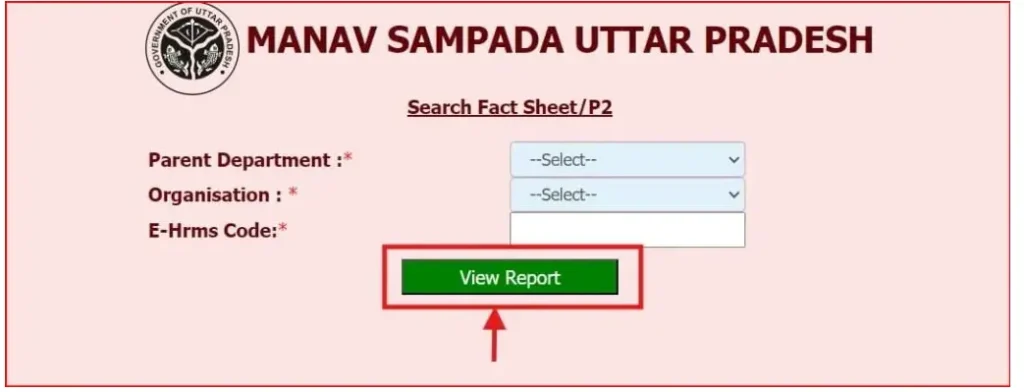
Select your parent department, organisation, and eHRMS code
After that, it will be shown.
Click on View Report.
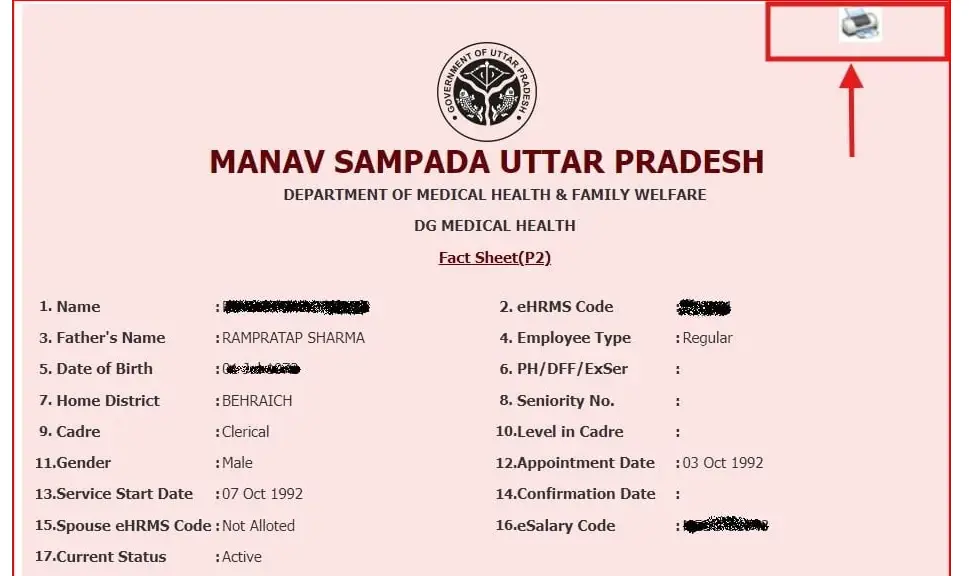
When you click on View Report, the fact sheet will appear. Find the download or export option and download the fact sheet.
Manav Sampada UP Education Module: Dedicated Services for Teachers & Staff
The Education module in Manav Sampada provides customised tools for teachers, headmasters, and academic administrative staff across Uttar Pradesh.
How to Access Education-Related Options:
- Log in using the department code EDUBASIC
- Open the dashboard and choose “Department Services”
- Select “Education Module” from the list
Key Features You Can Use:
- Enrollment for teacher training and workshops
- Academic year schedules and school calendar access
- Staff availability and school allocation reports
- Transfer request status and movement tracking
- Digital forms for academic and performance reporting
What is Manav Sampada (eHRMS)?
Manav Sampada is prepared by the National Information Centre (NIC). It is a comprehensive human resource management system designed to digitise all records of Hindustan’s government employees and streamline the HR process. It was initiated in Himachal Pradesh in 2018, where it was successful, and subsequently, it has expanded to more than 20 states.
States that are included are Punjab, Uttar Pradesh, Maharashtra, Kerala, and Tamil Nadu. These are one of the big steps in HR digitalisation. It has revolutionised management by providing access through the portal ehrms.upsdc.gov.in with paperless work. It is not only work for HR but also helps the government plan by providing numbers of employment, the need for recruitment, and retirements
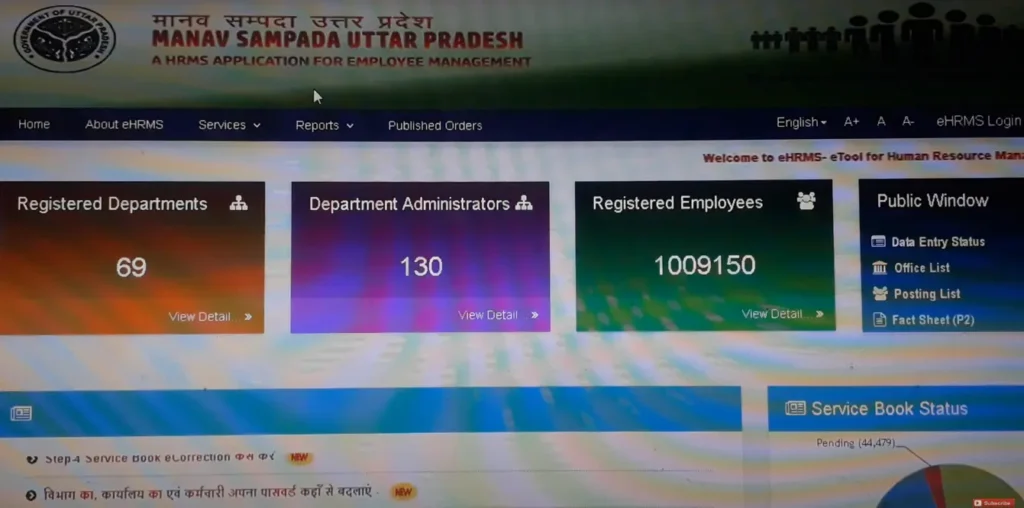
Key Features of the UP Manav Sampada Portal
Manav Sampada manages all features through its excellent online environment. Some features of Manav Sampada will help the employee.
- Employee Data & Info Management: Manav Sampada has a record of all employees using this portal. An employee can see their personal details, salary slip, job profile, service book, and their service history, and also update all functions of their work.
- Leave and Attendance Management: Employees can use the Manav Sampada portal to request leave, which is then automatically accepted, and they can view their attendance records.
- Salary information: Manava Sampada provides employees with access to view and download their salary slips. This is a wonderful feature from all and also gives access to financial records, which can be seen at any time of the day.
- Service book management: it is very important for an employee, and it is managed with accuracy so that the employee cannot face any challenge.
- Promotion and transfer details: using this portal, employees can see their details about promotion and transfer, and also this portal gives convenience to employees for the transfer process.
- Grievance Redressal: Using the portal, employees can complain about any problem and also resolve their issue immediately.
- Employee Reports: To see employee performance, the administration creates a report of the employee, managing his attendance and issues about any work.
- Training and Development: it provides information about all trainings, and employees can see information and also apply for training.
- Performance Appraisal: The portal gives access to employees to see their performance and obtain information about their metrics and areas for improvement.
How to Resolve Manav Sampada Portal Access Issues
Password Recovery:
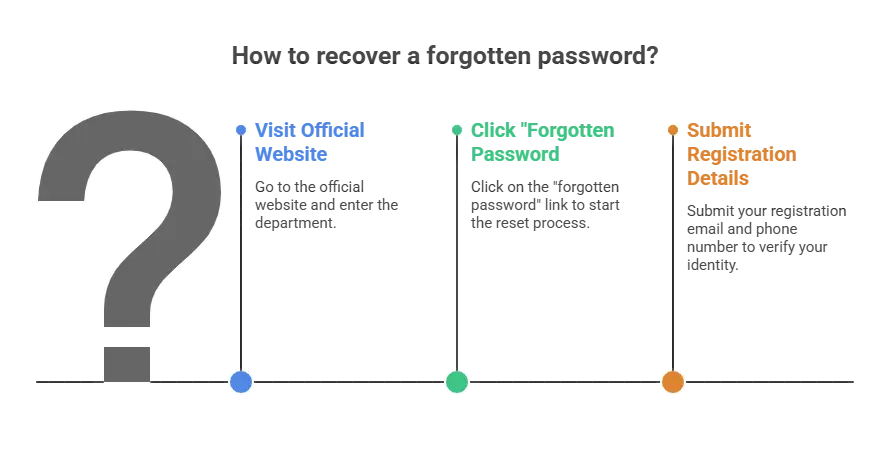
If someone faces an issue of a password that they cannot recall, then there is no need to worry; go to the official website and enter the department, then click on “forgotten password” and reset the password. You have to submit a registration email and phone number.
Data Correction
If your information is not correct, like if salary slip data is incorrect, then you have to contact your department HR and ask him to update your information.
Login Access Problems
If you face a login problem, then first of all check that you have the correct URL and also check your internet connection. If the problem remains, then there is a portal issue.
Browser Support
If you cannot log in, then try different browsers because of portal updates; then you have to update your browser.
How to Register on the Manav Sampada Portal as a New User
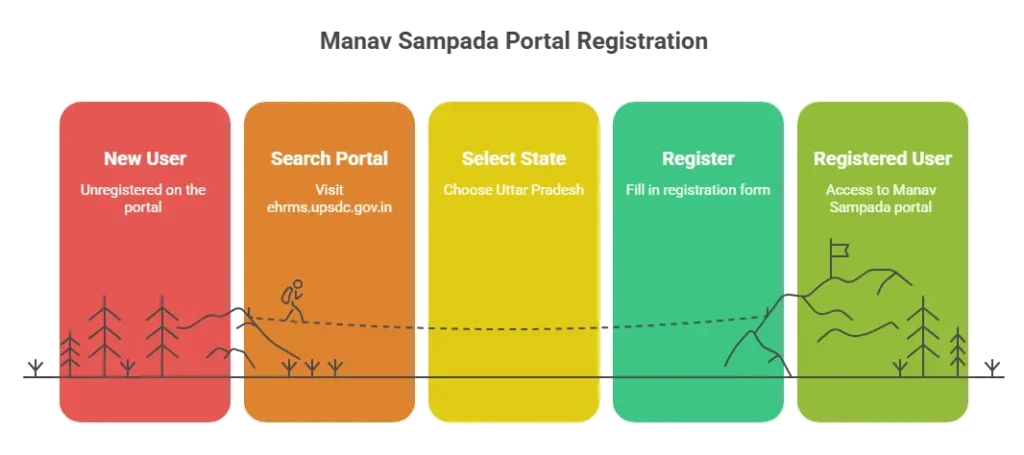
If you are a new user, then no need to worry, just follow these steps and register yourself on the Manav Sampada portal.
Now you can use your new username and password to log in Manav Sampada portal.
Search ehrms.upsdc.gov.in.
Select your state, UP, if you are a resident of Uttar Pradesh
Press Uttar Pradesh state and click on the new user registration, which is near the login button.
Put requirements like employee ID, date of birth, and give more information which are mentioned on the registration form.
Want to secure your account? Please fill inyour username and password.
Entering the information, then checking its validitydity that is correct or not.
Click on submit, and after that you will get a confirmation message or email.
Key Departments Using Manav Sampada
23 registered departments on Manav Sampada maintain service book records and employees’ payroll.311departments administrators are working there. More than 13lac people have created their profiles on the Manavsampda portal. The list of 90 registered departments is given below.
Departments Using Portal
| Sector | Department | Main Services Available |
|---|---|---|
| Education | Basic Education | Digital service book management, automated transfer processes |
| Secondary Education | Salary and payroll integration | |
| Healthcare | Medical & Health Services | Online leave requests and approval workflow |
| Family Welfare | Beneficiary and program tracking | |
| Infrastructure | Public Works (PWD) | Contractor registration and project oversight |
| Irrigation | Irrigation Department | Asset mapping and resource monitoring |
| Public Safety | Home / Police Department | Biometric attendance and duty records |
| Fire Services | Promotion and service progression management | |
| Rural Governance | Panchayati Raj | Complaint and grievance management |
| Rural Development | Rural Development Dept. | Pension processing and service verification |
Other Essential Services on the Portal
How to Access the Office List (Without Login)
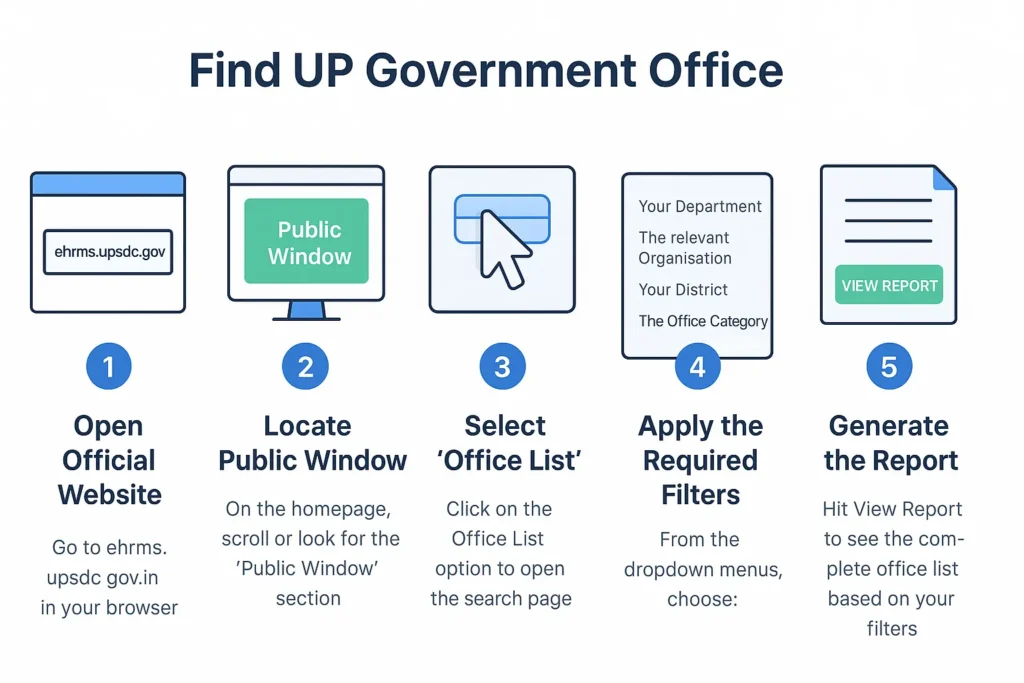
You want to find a government office, then follow these steps
- Open the Official Website. Go to ehrms.upsdc.gov.in in your browser.
- Locate the Public Window On the homepage, scroll or look for the “Public Window” section.
- Select ‘Office List.’ Click on the Office List option to open the search page.
- Apply the Required Filters. From the dropdown menus, choose:
- Your Department
- The relevant Organisation
- Your District
- The Office Category
- Generate the Report. Hit View Report to see the complete office list based on your filters.
Government Orders & Transfer Orders
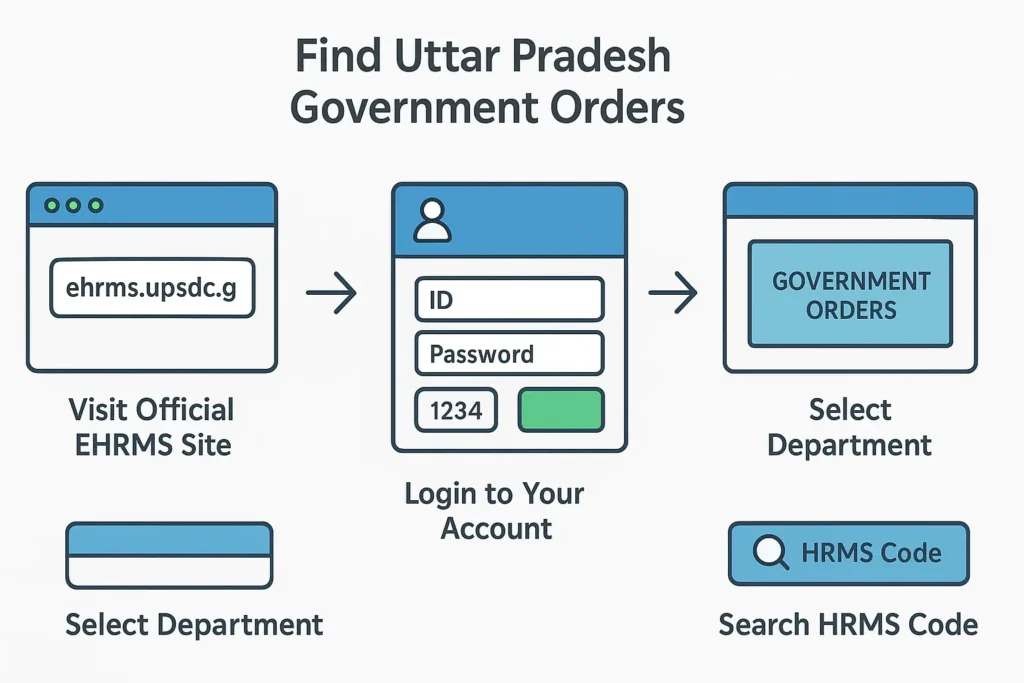
To find Uttar Pradesh government orders, follow these steps
To find Uttar Pradesh government orders, follow these steps
Go to the official EHRMS site https://ehrms.upsdc.gov.in
Enter your correct ID, password, and fill captcha code.
Select your department from the list you will be given.
You will see a dashboard where you can see multiple services, like government orders.
Search HRMS Code
Search HRMS Code
Want to find the HRMS code? Then follow these easy steps to get the code.
Open your Manav Sampada portal
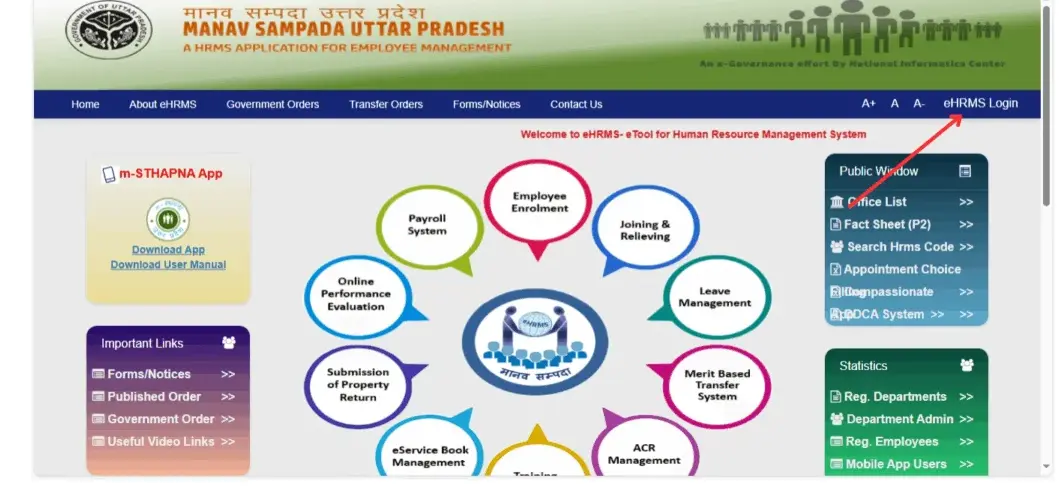
Find the link to the HRMS code.
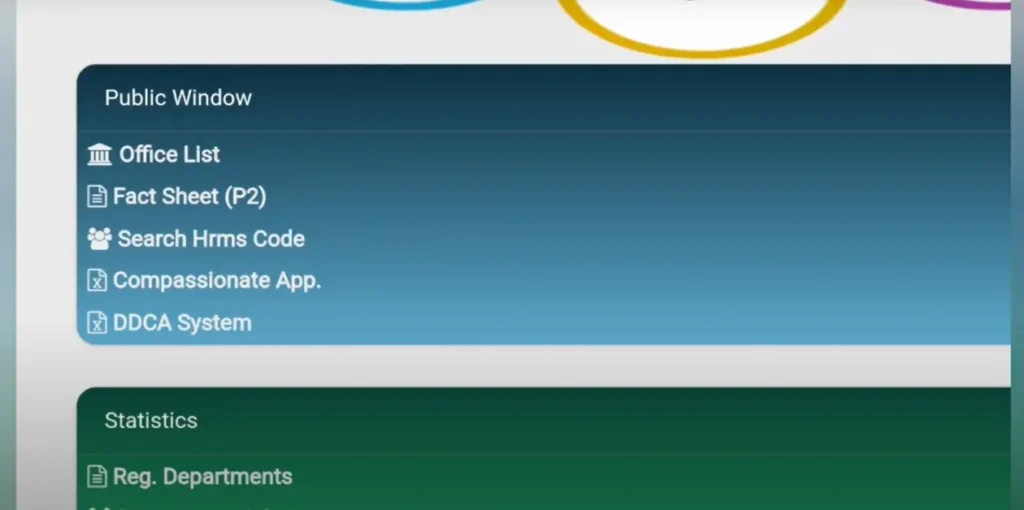
Click on the link and put information like your name, mobile number, and department.
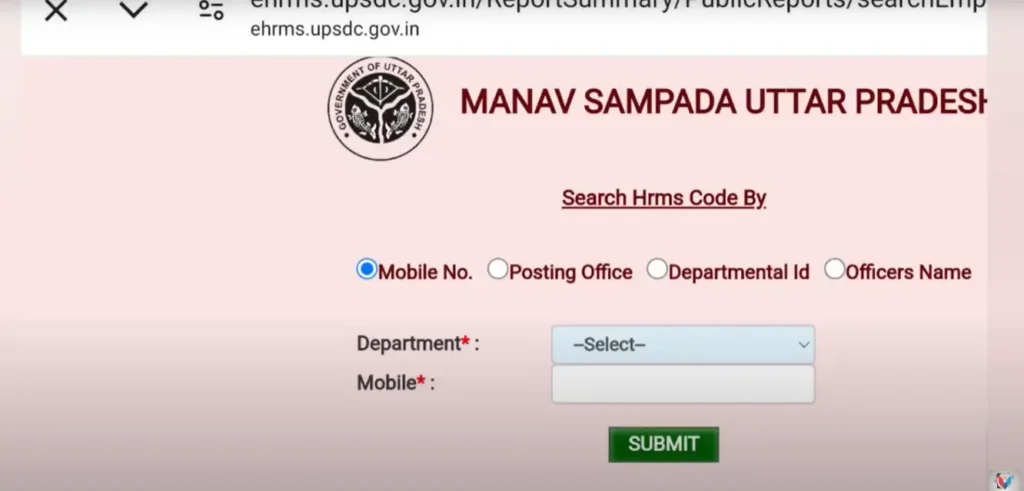
After sending the details, you will see your HRMS code.
Data Available on the Manav Sampada Portal
Here is the data that you can see and manage
Personal Information – Full name, date of birth, caste/category, photograph, and blood group
Contact Information – Present and permanent residential addresses
Employment Profile – Date of joining, cadre details, appointment history
Family Information – Details of immediate family members
Leave Records – Complete history of all sanctioned and pending leaves
Recognition & Promotions – Awards received and career advancement details
Annual Confidential Reports (ACRs) – Official performance evaluation entries
Disciplinary Records – Departmental inquiries or proceedings (if any)
Service Timeline – A Chronological record of your entire career in the department
Core Functions for Uttar Pradesh Government Employees
Go to the official website: https://ehrms.upsdc.gov.in
- Automated Leave Management: You can submit and track leave requests online through a simple and user-friendly system.
- Electronic Salary Access :You can easily download digitally signed payslips without going tothe office.
- Secure Digital Service Book: You can access your complete career history, which is protected by strong encryption
- Transparency Dashboard: You can get real-time updates about promotions, transfer,s and postings.
Eligibility Requirements for Access
EHRMS up https://ehrms.upsdc.gov.in/ is an online system that manages service records, leave management, and many more for government employees. To use this portal and get advantages from this then you have to employee of up government. Here are the requirements to access the portal.
Exclusion of Retired Personnel – Former employees are not eligible to register or use leave‑management functions
Employment Status – Must be a current employee of the Government of Uttar Pradesh in a recognised role (teaching, non‑teaching, health, police, administrative, etc.)
Department Registration – The employing department must be officially enrolled and active on the Manav Sampada UP eHRMS platform
Residency Proof – Typically requires being a permanent resident of Uttar Pradesh, with proof provided during verification
Valid Credentials – Must possess a registered HRMS code or an approved departmental identifier
Accurate Profile Information – Personal and service details should be correct and verifiable
Departmental Approval – Registration activities only after verification and approval by the designated HR or nodal officer
Manav Sampada Portal: India’s HRMS Revolution Transforming 8.4 Million Government Careers
Manav Sampada has become a successful portal in India. After success in Himachal Pradesh and Uttar Pradesh, it has expanded its services and serves 8.4million employees in 22+ states.
Nationwide Reach – States Using eHRMS
The remarkable impact of our platform has driven its implementation across numerous states in India, including:
- Uttar Pradesh
- Himachal Pradesh (Pilot State)
- Punjab & Haryana
- Bihar & Jharkhand
- Maharashtra & Gujarat
- Madhya Pradesh & Chhattisgarh
- Southern States: Kerala, Karnataka, Tamil Nadu, Telangana, Andhra Pradesh
- Eastern States: West Bengal, Odisha
- Northeastern States (Multiple)
Benefits of Manav Sampada for 8.4 Million Government Employees
Nationwide Reach & Key Benefits:
This platform is adopted by Punjab, Bihar, Maharashtra, West Bengal, and Kerala, providing wonderful benefits. These are given below:
- Online Leave System – Employees can request time off digitally, removing the need for paperwork.
- Instant Pay Records – Salary slips are available for immediate download without visiting an office.
- Digital Service Book – Complete service history can be viewed and confirmed electronically.
- Mobile-Friendly Access – The m‑STHAPNA app provides quick HR services on smartphones.
- Strong Data Protection – Encryption safeguards all stored employee information.
- Work-from-Anywhere Convenience – HR details are accessible remotely, cutting down on department visits.
- Transparent & Efficient Operations – it also enables data to steer governance tracking.
User Success Stories
In the past, it took more than eight months to process my pension documents. Now with Manav Sampada, I received the approval in just six days.” — Rajesh Kumar, Retired Teacher, Uttar Pradesh
“In the past, transfer orders arrived after the school session had begun. Now, I get them three months in advance.” — Priya Mehta, Government School Principal, Himachal Pradesh
Manav Sampada Mobile App
Using manav sampada app( Manav Sampada App (m-STHAPANA). you can easily send a request for leave, see your service record, and everything you can checkwith just one click on your mobile. It is a wonderful step by the Uttar Pradesh administration for government employees.

Using manav sampada app. you can easily send a request for leave, see your service record, and everything you can checkwith just one click on your mobile. It is a wonderful step by the Uttar Pradesh administration for government employees.
Contact Details (Helpdesk & Support)
Manav Sampada provides toll-free numbers for the government employees’ facility
Toll-free number for UP: 1800-180-5312
| Manav Sampada Project, e-HRMS State Government Departments, Uttar Pradesh |
| NIC, Manav Sampada Technical Support Team Email ID- ehrms-up@gov.in |
| Visit The Official Portal www.ehrms.upsdc.gov.in |
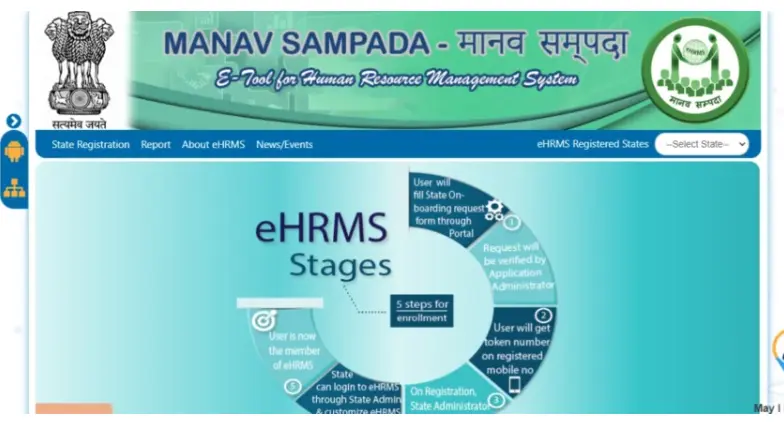
eHRMS Stages
5 Steps for Enrollment
User fills in the State Onboarding form via the portal.
Your request will be verified by an administrator
You will get the code on the registered mobile number.
Once registered, a State Administrator account is set up.
Now the user is a member of eHRMS.
Conclusion
Manav Sampada is a comprehensive digital HR platform that streamlines government employee management by centralising records, salary access, leave applications, and personal data into a secure, user-friendly system. It empowers staff by giving them control over their information. It is widely spread across multiple states like Uttar Pradesh, Assam, Mizoram, and Arunachal Pradesh. Portal offers everything you need, like salary slip, leave application, and managing your information.